User Journey
- Install Skybert in the Python project where the agent will live.
- Prepare providers with Pi and the model provider you want to use.
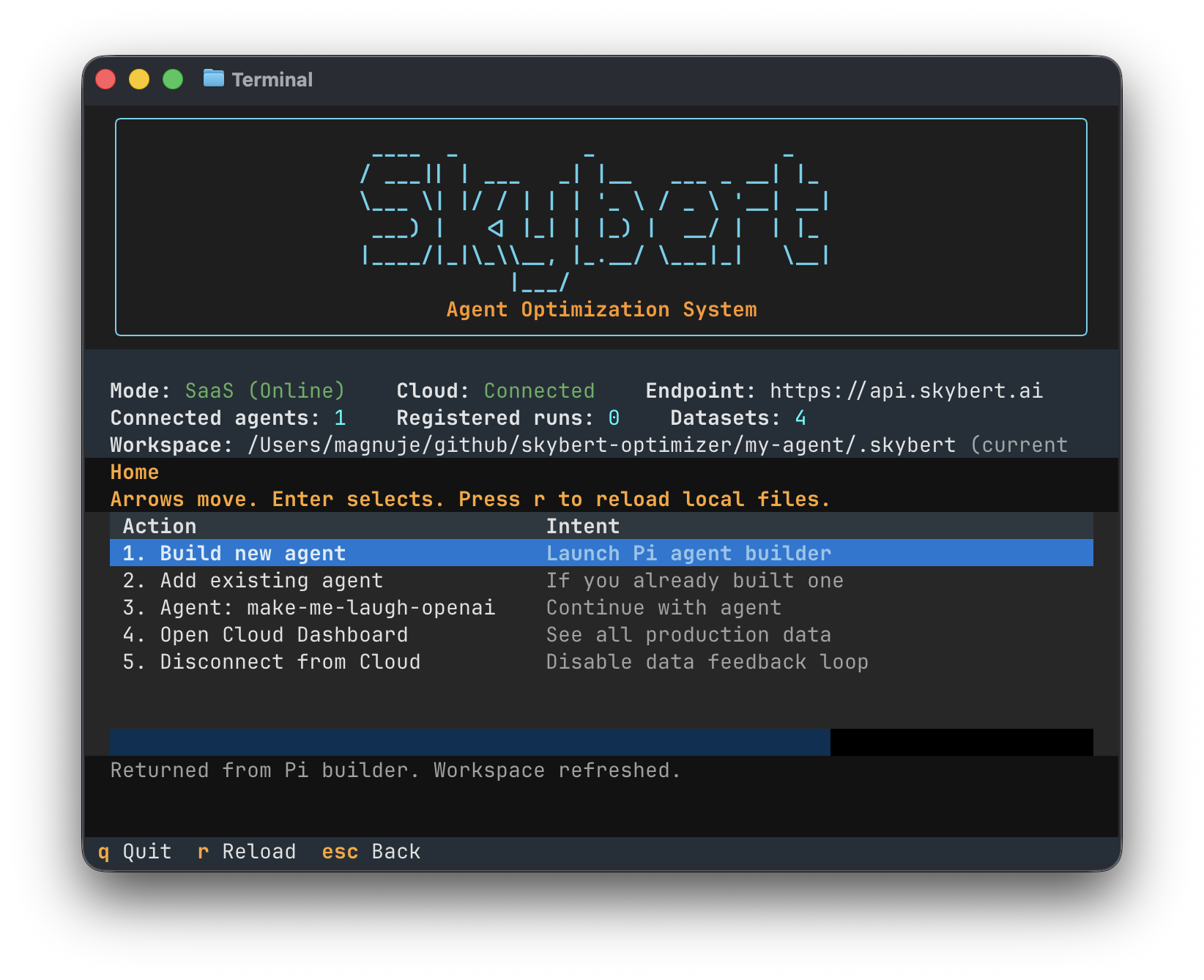
- Build locally from the fullscreen
skybert workspace. Choose Build new agent or Add existing agent.
- Run normally. Decorated functions capture observations in
.skybert/. If you are logged in, runs will sync to Cloud for user-friendly annotation and dataset building.
- Review and evaluate local observations or synced datasets. Pi edits code, prompts, contracts, validators, and versions.
- Ship through git. Review and deploy changes like you normally would. Agents in production will automatically upload observations if configured with Cloud credentials.
Installation
Install Skybert in the agent project. The package includes the Python SDK, local workspace, fullscreen CLI, dataset tools, eval helpers, and Cloud login commands.
Poetry
poetry add skybert
Running the CLI: use uv run skybert status in uv projects, poetry run skybert status in Poetry projects, or skybert status when your virtualenv is active.
Install Pi and connect your model provider:
npm install -g --ignore-scripts @earendil-works/pi-coding-agent
pi
/login
Provider setup: use Pi's
/login command, then follow the
Pi provider docs for the model provider you want.
New Agent
The guided path starts from a clean folder and the fullscreen workspace.
mkdir my-first-agent
cd my-first-agent
uv init
uv add skybert
skybert
Add useful data before you launch. Put examples, CSV exports, JSON, JSONL, specs, prompts, or notes in the agent folder. Skybert inspects the project scope, summarizes discovered data files, and Pi asks which data should guide the build.
Choose Build new agent. Skybert launches Pi, checks provider readiness, asks what useful task data you already have, generates or edits code locally, and writes evidence for the next step.
Add Existing Agent
Use this path when your repo already has agent, workflow, prompt, tool, API handler, or pipeline code and you want Skybert to add instrumentation around the right boundary.
cd existing-agent-repo
uv add skybert
skybert
- Choose Add existing agent in the fullscreen workspace.
- Pi inspects the active folder, finds likely agent entrypoints, and asks which path is the real agent if the code is ambiguous.
- Skybert should wrap the smallest stable task function, not app startup, server glue, or unrelated framework plumbing.
- Existing CSV, JSON, and JSONL files can be used as task examples or evaluation data.
Existing Agents
Agents show up in the Skybert TUI when Skybert detects decorated functions in the folder structure you launched from.
How detection works
Skybert performs a static scan for @skybert.optimize(...) decorators under the active project scope. It does not import your modules just to discover agents.
When nothing appears
Start skybert from the repo or subfolder that contains the decorated code, or set SKYBERT_FOCUS to the folder Skybert should scan.
Select an existing agent from the Home screen to review runs, inspect datasets, monitor versions, or continue the same Pi build session with its prior context.
Skybert Framework
Skybert works at the Python function boundary. Decorate the function whose output you want to observe, review, evaluate, and improve.
Agent
agent="..." groups related functions, observations, datasets, evals, and production monitoring.
Version
version="0.1.0" is required. Increment it whenever agent behavior changes so Cloud can compare shipped versions.
Target
target="..." names the returned field reviewers and evals should judge.
inputs=[...] names the function arguments that define a dataset row, such as question, topic, ticket_text, or document.- Inputs are the case being evaluated. They are kept stable when Skybert reviews, compares, and reruns an example.
- Function parameters not listed as inputs can be useful tunable values, such as
prompt, model, temperature, thresholds, or grader instructions.
display_results=[...] can show extra returned fields beside the target.
import skybert

@skybert.optimize(
    agent="support-agent",
    version="0.1.0",
    inputs=["question"],
    target="answer",
)
def answer_question(question: str, prompt: str = "Answer briefly."):
    return {"answer": call_your_agent(question, prompt=prompt)}
Local Workspace
Skybert is local-first. Normal agent runs do not ask login questions or require Cloud. Observations, annotations, traces, datasets, sync state, and auth live under the project .skybert/ workspace.
Connected dev runs: local runs always write to .skybert/. When the workspace has saved Cloud credentials from skybert login, normal non-interactive runs sync to Cloud unless Cloud upload is disabled.
Default
Start skybert from the agent folder. The workspace is ./.skybert.
Override
Use SKYBERT_WORKSPACE=/path/to/project for a project workspace or SKYBERT_CONFIG_DIR=/path/to/.skybert for an exact data directory.
| File |
Purpose |
runs.jsonl |
Recorded decorated function calls. |
annotations.jsonl |
Local review feedback from the TUI, CLI, or code. |
traces.jsonl |
Trace bundles around larger work. |
gold_datasets.json |
Local datasets used for eval and improvement. |
sync_state.json |
Dataset sync bookkeeping. |
auth.json |
Saved Cloud credentials from skybert login. |
Run skybert workspace when you need to see exactly which workspace is active.
Fullscreen CLI
Run skybert with no arguments to open the local workspace. It is the primary product surface for local work.
- Home shows Cloud login state, local counts, Pi readiness, and known agents.
- Build new agent launches the Pi builder for a new production-grade agent.
- Add existing agent asks Pi to inspect existing code and add instrumentation at the right function boundary.
- Continue with agent reopens the same Pi build session, so Pi keeps the prior build context when you resume work on an existing agent.
- View runs lets you review local observations as good, bad, partial, or unsure.
- Datasets previews local and Cloud datasets.
- Monitor summarizes run quality by decorator version when Cloud is connected.
Datasets and Eval
Datasets are the bridge between real observations and repeatable improvement. They can come from reviewed local runs, JSONL files, or production datasets created in Skybert Cloud and pulled locally.
python agent.py --interactive
skybert eval run --agent support-agent --function answer_question --dataset <dataset-id>
- Interactive mode is only for eval/control loops. Normal agent runs just record observations.
SKYBERT_INTERACTIVE=1 python agent.py also starts interactive mode.skybert eval run-command ... -- python agent.py can launch the interactive process for a one-shot eval.- Pi uses datasets and eval evidence to make local code improvements.
Cloud and Production
Cloud is optional for local builds. Use it when you want hosted observations, team review, production dataset creation, and version monitoring.
skybert login
skybert show-token

export SKYBERT_ENV=production
export SKYBERT_API_KEY=...
export SKYBERT_GIT_SHA=...
- Store the token from
skybert show-token as SKYBERT_API_KEY in your deployment secret store.
- Set
SKYBERT_ENV=production on deployed agents so production observations upload.
- Do not commit or log tokens. Use
skybert show-token --json for automation.
- The TUI sync path is dataset-only. Runs sync from instrumented code when Cloud credentials are active.
Open Cloud Dashboard
Telemetry
Skybert records runs without telemetry extras. Add an extra only when you want Skybert spans in your existing OpenTelemetry or Logfire setup.
| Install |
Use it for |
uv add "skybert[otel]" |
Adds OpenTelemetry dependencies. With SKYBERT_TELEMETRY=otel, Skybert creates run and trace spans; your app still controls exporters and OTel environment. |
uv add "skybert[logfire]" |
Adds Logfire support. With SKYBERT_TELEMETRY=logfire, Skybert configures Logfire and instruments OpenAI and Pydantic AI when those packages are installed. |
Content capture: Logfire content capture is off by default. Set SKYBERT_LOGFIRE_INCLUDE_CONTENT=1 only when prompt and output content is safe to send to your telemetry backend.
Annotations and Tracing
Use annotations when your product already knows whether an output was good, bad, incomplete, or preferred by a user. This is useful in user-facing products: thumbs up/down, edits, approvals, expert reviews, and support outcomes can become feedback on the exact run that produced the output.
That feedback gives human experts a direct way to steer the system. Skybert can turn annotated runs into datasets, so future build and optimization work is shaped by real user preferences and expert judgment. Skybert attaches feedback to the latest run unless you pass a specific run_id.
result = answer_question("How do I deploy?")

skybert.annotate(
    verdict="partial",
    corrected_output={"answer": "Deploy normally and set SKYBERT_API_KEY."},
    comment="The answer missed the token setup.",
)
For asynchronous product flows, store the run id with your own job, message, or review record, then annotate that run when feedback arrives later.
async def create_answer(question: str):
    result = await answer_question(question)
    return {
        "answer": result["answer"],
        "skybert_run_id": skybert.last_run_id(),
    }

async def handle_user_feedback(run_id: str, accepted: bool, edited_answer: str | None = None):
    skybert.annotate(
        run_id=run_id,
        verdict="good" if accepted else "partial",
        corrected_output={"answer": edited_answer} if edited_answer else None,
        comment="User feedback from the product UI.",
    )
Accepted verdict shortcuts are good, bad, partial, and unsure. Use skybert.Trace(...) to group larger work inside a run.
CLI
| Command |
Use it for |
skybert |
Open the fullscreen local workspace. |
skybert login |
Log in to Skybert Cloud and save credentials locally. |
skybert show-token |
Print the saved token for SKYBERT_API_KEY deployment secret setup. |
skybert status |
Show Cloud auth state, workspace, counts, and dataset-only sync mode. |
skybert workspace |
Show the active local workspace path and resolution source. |
skybert inspect --json |
Return machine-readable workspace, provider, dataset, and agent discovery data. |
skybert providers check |
Check provider readiness without printing secrets. |
skybert agents list |
List known agents and decorated functions. |
skybert runs list |
List captured local observations. |
skybert runs review |
Attach a local verdict annotation to a run. |
skybert datasets ... |
List, import, create, pull, publish, and preview dataset sync. |
skybert eval ... |
Run current local code against datasets through an interactive agent process. |
skybert doctor |
Check workspace access, auth state, and Cloud reachability when connected. |
skybert logout |
Clear saved Cloud credentials. |
skybert reset |
Delete local Skybert state in the workspace. |
Environment
| Variable |
Purpose |
SKYBERT_WORKSPACE |
Project workspace override. Skybert stores data in $SKYBERT_WORKSPACE/.skybert. |
SKYBERT_CONFIG_DIR |
Exact .skybert data-directory override. |
SKYBERT_FOCUS |
Directory the decorator scanner should focus on. |
SKYBERT_ENV |
Set to production for deployed agents that should upload production observations. |
SKYBERT_API_KEY |
Production Cloud token from skybert show-token. |
SKYBERT_INTERACTIVE |
Set to 1 to start an agent process in interactive eval mode. |
SKYBERT_RUN_MODE |
Set to interactive for interactive mode. eval is no longer supported. |
SKYBERT_GIT_SHA |
Optional deployed git SHA attached to production observations. |
SKYBERT_DISABLE_CLOUD_UPLOAD |
Set to 1 to prevent runtime Cloud observation upload. |
SKYBERT_TELEMETRY |
Set to logfire or otel for optional telemetry integration. |
SKYBERT_LOGFIRE_INCLUDE_CONTENT |
Set to 1 to include prompt and output content in Logfire instrumentation. |